Install Proofpane.
One binary. Pair once. Connect any MCP-speaking AI client. ~5 minutes start to first audited tool call. Works with Claude Desktop, Codex, Cursor, Continue, OpenClaw, Hermes Agent — anything that speaks MCP. Available today on macOS Apple Silicon (arm64), macOS Intel (x86_64), Linux x86_64, and Windows x86_64.
- macOS — signed and Apple-notarised.
Everything we distribute for macOS: daemon
v1.5.26(arm64 + x86_64) and the public Trayv0.3.10universal.dmgand its.pkgMDM installer (both also stapled). Signers:Developer ID Application: PROOFPANE LIMITEDfor the app and disk image,Developer ID Installer: PROOFPANE LIMITEDfor the package, teamB94QM75QNG. - Windows — not signed. Authenticode is a separate certificate we have not bought, so SmartScreen warns on first run. Verify by SHA-256.
- Linux — no platform-signing claim. Published SHA-256 digests are the integrity reference.
"stapled": false on the daemon is a packaging fact, not a missing signature:
Apple defines stapling for .app/.dmg/.pkg bundles, so a
bare executable resolves its notarisation online at assessment instead — which the
installer below performs before it moves the binary into place. Per-artifact record:
releases.json.
The product model
One full platform. A tailored desktop per client. A view per role.
The screenshot below is the full Proofpane build — every capability in one place, including the built-in governed assistant. That is not what every employee sees.
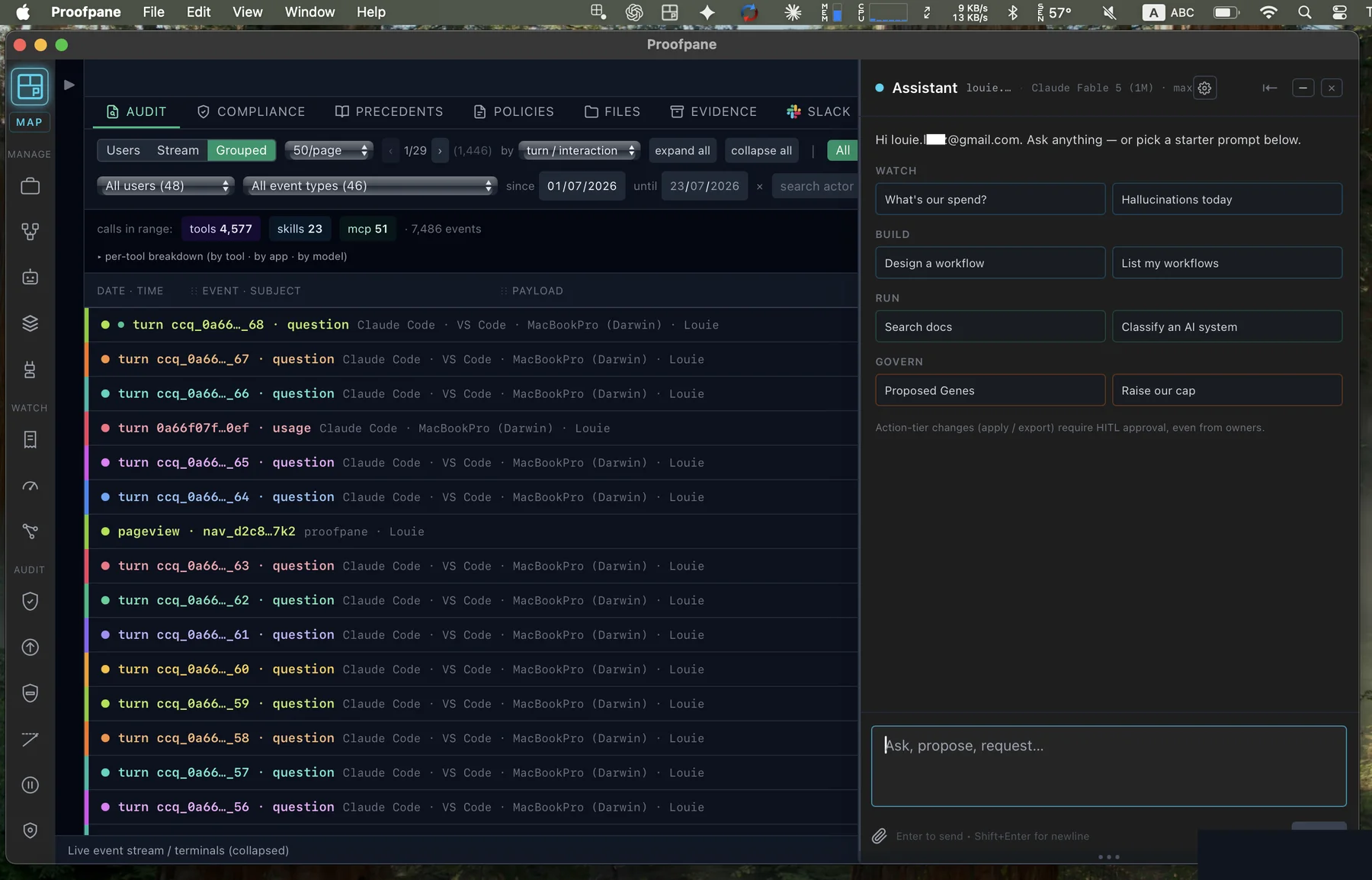
The complete capability set
Audit, compliance mapping, policies, evidence export, cost metering, workflows and the governed assistant — the whole surface, shown above.
A tailored cut per client
Each client receives a desktop carved from the full product around its governed use cases — not a one-size install.
A view per role
Inside the same client, people see different interfaces, actions and permissions according to role — an underwriter's screen is not the admin's.
And the server runs wherever you need it. Proofpane ships as Docker images — our cloud, your cloud, or entirely on your own hardware behind the firewall. Same product, same evidence chain. Run it in your own environment and nothing leaves it: control plane, database and audit chain all stay inside your boundary, and signed chain-head anchors can be exported to an off-box store you configure, which your deployment’s daily check reads back to check a restored chain; no evidence pack carries them now, so a third party cannot check them. Honest status: the images ship and the architecture is identical; everything measured and published so far ran against our hosted instance.
The one integration that matters on day one: your identity provider. Proofpane plugs into your existing single sign-on via OIDC — Entra ID, Google and Okta all speak it — and role-level isolation is enforced from the first login: each person sees exactly what their role allows, nothing more. Whether GCP, AWS or Azure sits underneath makes no difference; identity is the seam that matters, and it is a small one.
The universal layer
The desktop can differ. The tray daemon is the same everywhere.
Whatever shape the client desktop takes, every employee machine installs the same small Proofpane tray daemon. It sits in the menu bar and does its job quietly:
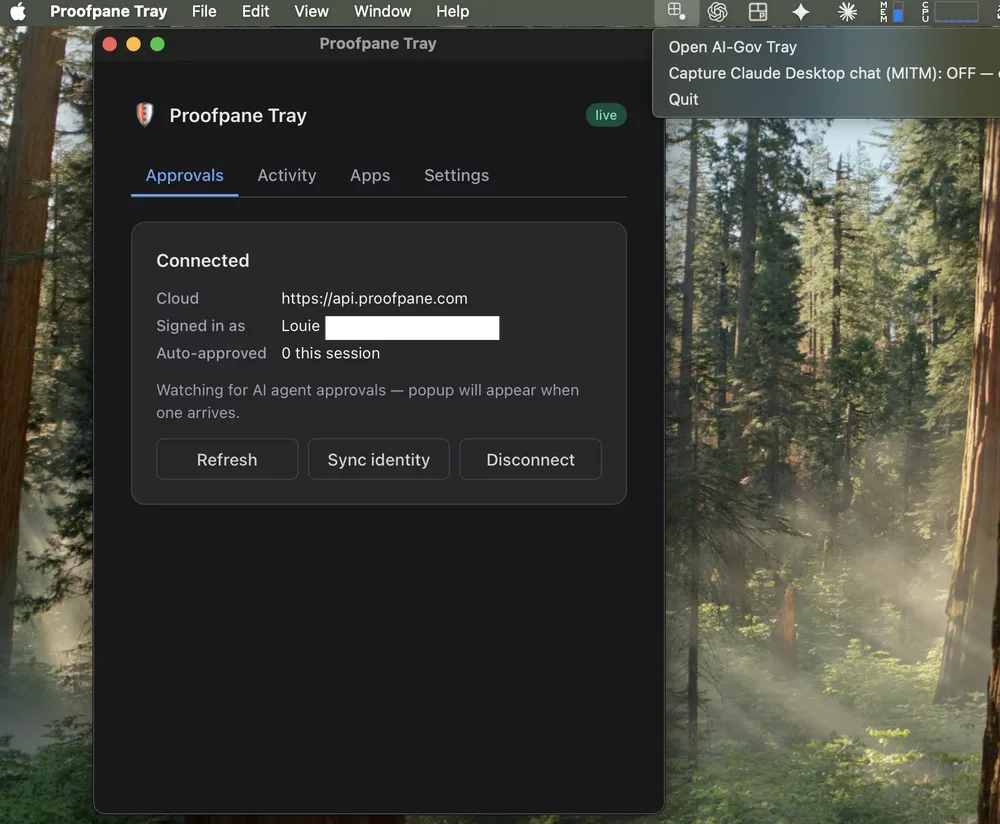
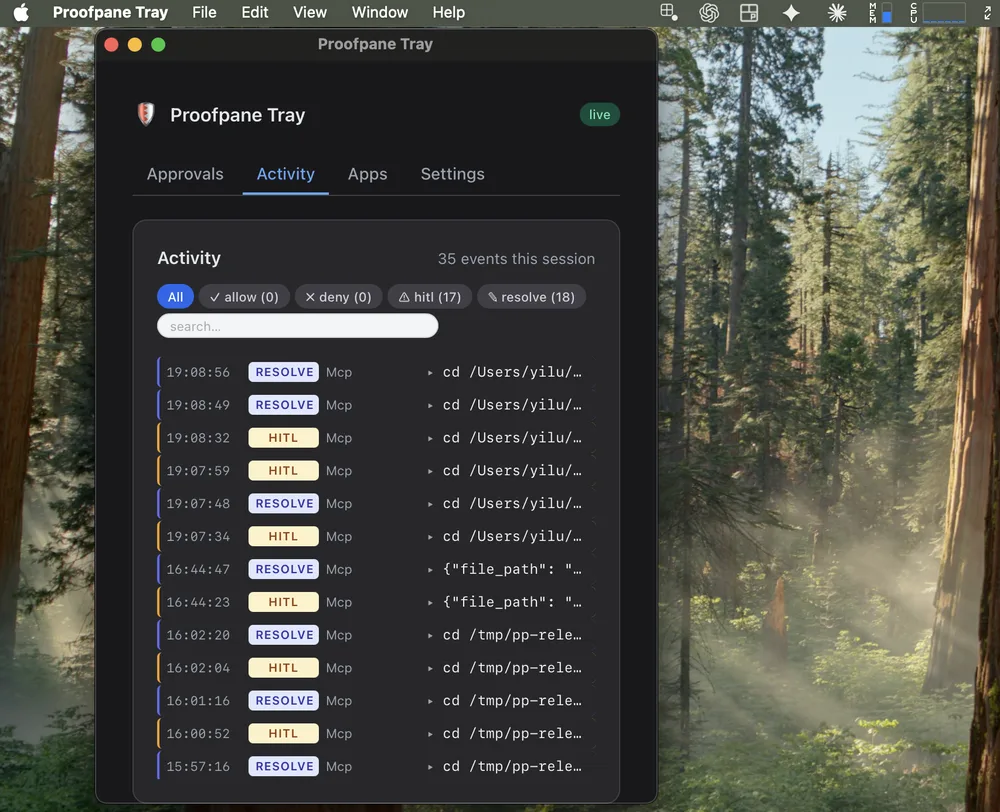
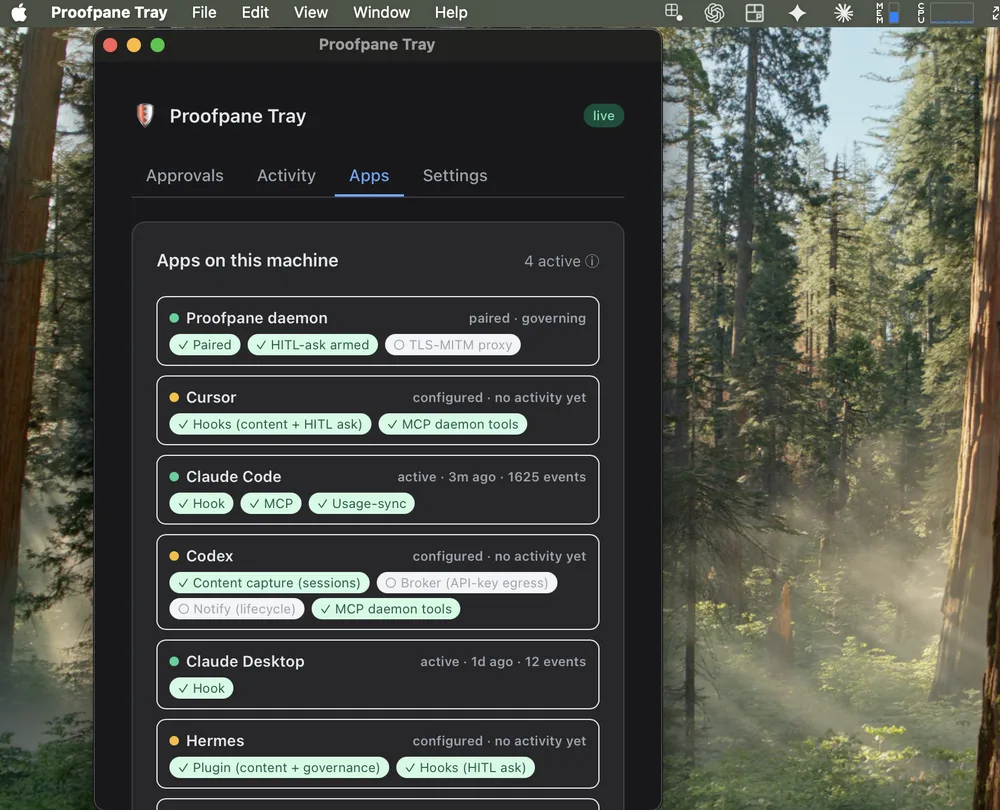
Official vendor hooks — no spyware, no traffic interception. And the interception toggle you can spot in there? OFF, by design.
The install
Six steps on the employee machine — the last one optional.
Download the daemon
One single-file binary (~13 MB). No dependencies, no installer wizard. The current macOS daemon release is Developer ID-signed and Apple-notarised; install it with the one-liner below.
Available for macOS Apple Silicon macOS Intel Linux x86_64 Windows x86_64
Universal one-liner — auto-detects platform + arch:
curl -fsSL https://app.proofpane.com/install.sh | bash
Works on macOS (arm64 + x86_64), Linux x86_64, and Windows x86_64
(run from WSL or Git Bash). Binaries served from
https://app.proofpane.com/daemon/.
PROOFPANE LIMITED Developer ID and notarised by Apple.
Install it with the auto-detecting command above; every platform tab below uses that
same fail-closed installer rather than bypassing its checks.
The old Proofpane Daemon.app ZIP formerly linked here pre-dated the
certificate and is no longer presented as the current download.
Check it yourself rather than taking our word —
codesign -dv --verbose=4 "$HOME/.local/bin/airgov_daemon" names the signer and
spctl -a -vvv -t install "$HOME/.local/bin/airgov_daemon" answers
accepted / source=Notarized Developer ID. Compare its SHA-256 with
the sidecar below. A bare executable cannot carry a stapled ticket, so macOS
resolves notarisation online during assessment. The protected installer performs
that assessment before moving the binary into place; a quarantined browser download
is normally assessed when opened.
Windows — and only Windows — is still unsigned: Authenticode
needs a different certificate, which has not been bought, so SmartScreen still warns
there. That row does not carry over to macOS, which is signed and notarised as above.
Per-platform release evidence
Run the same protected installer on every platform. The links in each tab expose the current channel’s SHA-256 sidecar for independent inspection; they are not a second, weaker installation path.
curl -fsSL https://app.proofpane.com/install.sh | bash
airgov_daemon --help
SHA-256: airgov_daemon-darwin-x86_64.sha256
curl -fsSL https://app.proofpane.com/install.sh | bash
airgov_daemon --help
Native arm64 build for M1/M2/M3/M4 — no Rosetta needed.
SHA-256: airgov_daemon-darwin-arm64.sha256
curl -fsSL https://app.proofpane.com/install.sh | bash
airgov_daemon --help
Linux x86_64 build.
SHA-256: airgov_daemon-linux-x86_64.sha256
# Run from WSL or Git Bash:
curl -fsSL https://app.proofpane.com/install.sh | bash
airgov_daemon --help
Windows x86_64 build. This platform — and only this platform — is still unsigned: Authenticode needs a separate certificate from the Apple one (the macOS builds above are signed and notarised), so SmartScreen warns on first run. Verify the download with the checksum:
SHA-256: airgov_daemon-windows-x86_64.exe.sha256
Pair with your Proofpane org
In the Proofpane app: MCP Setup → + Pair a device → copy the nine-character code, in the form XXX-XXX-XXX (valid for 10 minutes).
Then in your terminal:
AIRGOV_CLOUD_URL=https://api.proofpane.com \
  airgov_daemon pair J2W-UCF-LCL
You should see:
Pairing with https://api.proofpane.com
  Code: J2W-UCF-LCL
  Name: MacBookPro (Darwin)

Paired successfully.
  device_id: 831aecd2-dc82-4590-8b1a-a2e031d82108
  config:    /Users/yilu/.airgov/config.json

--- Auto-configuring detected MCP clients ---
Detected: Claude Desktop, Claude Code (CLI), Cursor, VS Code Copilot, Codex app
✓ Claude Desktop:    configured
✓ Claude Code (CLI): configured
✓ Cursor:            configured
✓ VS Code Copilot:   configured
✓ Codex app:         configured

✓ Pair + MCP client setup both done. Restart the apps above to pick up the new server.
The pair command auto-detects every supported MCP client and writes its
config in the right shape (JSON / TOML / YAML). One-time setup,
one command. The token in ~/.airgov/config.json is what
authenticates every subsequent tool-call audit row.
Need to skip the auto MCP install? Add --no-auto-install-mcp to the pair
command — you can run proofpane install-mcp separately later.
Restart your AI clients
The pair step already wrote the proofpane entry into every detected
client's config. Now just restart them so the changes take effect:
- Claude Desktop — Cmd+Q + reopen (reload window won't pick up MCP)
- Cursor / VS Code — Cmd+Shift+P → "Developer: Reload Window"
- Codex app — Cmd+Q + reopen
- Claude Code — no restart, next
claudeinvocation picks it up - Continue — reopen the side panel
Want to inspect / change what was written? Three useful flags:
proofpane install-mcp --list— show which clients were detected + format usedproofpane install-mcp --dry-run— preview the diff without writingproofpane uninstall-mcp— clean removal; preserves your other MCP servers
Prefer to edit the config files yourself? The exact JSON / TOML / YAML the auto-installer writes is below — pick your client to see the snippet:
Edit ~/Library/Application Support/Claude/claude_desktop_config.json
(macOS) or the equivalent on your OS. Add a proofpane entry under
mcpServers:
{
  "mcpServers": {
    "proofpane": {
      "command": "proofpane",
      "args": ["mcp"],
      "env": {
        "CP_VENDOR": "claude_desktop",
        "CP_AGENT":  "default"
      }
    }
  }
}
Fully restart Claude Desktop. The Proofpane MCP server appears under Settings → Connectors as Connected.
Settings → Connectors → Connect to a custom MCP. Fill the form:
Name              proofpane
Transport         STDIO
Command to launch proofpane
Arguments         mcp
Environment vars  CP_VENDOR = codex_desktop
                  CP_AGENT  = default
Working directory (leave blank or set to project root)
Save. Codex spawns the daemon on first tool call.
Settings → MCP → Add server:
{
  "mcpServers": {
    "proofpane": {
      "command": "proofpane",
      "args": ["mcp"],
      "env": {
        "CP_VENDOR": "cursor",
        "CP_AGENT":  "default"
      }
    }
  }
}
Reload Cursor. Tools surface in the agent panel.
Edit ~/.continue/config.json:
{
  "experimental": {
    "modelContextProtocolServers": [
      {
        "transport": {
          "type": "stdio",
          "command": "proofpane",
          "args": ["mcp"],
          "env": {
            "CP_VENDOR": "continue",
            "CP_AGENT":  "default"
          }
        }
      }
    ]
  }
}
Anything that speaks MCP works. The shape is always:
- Command:
proofpane(or full path if not on PATH) - Args:
["mcp"] - Transport: stdio
- Env (optional):
CP_VENDOR(descriptive label),CP_AGENT(agent-policy lookup key)
That's it. The daemon answers the MCP initialize handshake,
advertises its tool catalog, and routes every tools/call through
the policy gate + audit chain.
slack-mcp__send_message), and routes calls through the same
policy / HITL / DLP / audit pipeline. The per-row toggle is the killswitch:
click off → SIGTERM lands in <2 s, no client restart needed.
Create an agent policy
CP_AGENT, the daemon denies every tool call. This is intentional:
a fresh install can't read your filesystem until you say which paths are allowed.
In the app: MCP Setup → Agent Policies → New policy. Reasonable starter:
Agent name       default            (matches CP_AGENT)
Description      Dev workstation
Allowed paths    ~/projects/**
                 /tmp/**
Denied paths     ~/.ssh/**
                 ~/.aws/**
                 /etc/**
                 /var/log/**
Bash policy      ask                (HITL prompt for every bash)
Default decision deny               (catch-all: refuse the unknown)
Valid until      (blank = permanent)
Save. Tool calls into allowed paths execute immediately; bash routes through Slack / Tray HITL approval; everything else is denied with the matched rule recorded on the audit row.
Verify it works
In your AI client, ask:
What files are in the current directory?
Then open app.proofpane.com/agent-activity — the unified agent activity dashboard (MCP-native + broker traffic on one chain; filter by Source to slice). The By client + version card should show one row:
client            version           calls   denied
Codex             26.429.30905        1       0
That's the MCP initialize handshake's clientInfo flowing
through. Every subsequent tool call increments calls; any
policy denial increments denied. Six years from now, a regulator
opens the Evidence Pack for this window and sees the same row, same hash,
same answer.
Prefer to verify from the terminal? The daemon ships a
one-shot health subcommand:
airgov_daemon health
Prints the resolved config path, the paired cloud URL, the device id, and a ready / not-ready line summarising reachability of the cloud control plane. Handy from CI / shell scripts.
(Optional) Install the Tray app
For native-OS HITL approval pop-ups (when an agent hits a bash gate or a high-risk skill output): a small system-tray app that subscribes to your org's HITL queue and surfaces approve / deny prompts without context-switching.
tray-v0.3.10 has an anonymously downloadable universal macOS
.dmg and a .pkg installer for MDM deployment, both
Developer ID-signed and Apple-notarised
(PROOFPANE LIMITED, team B94QM75QNG), stapled,
and each accompanied by a SHA-256 sidecar. The release page also carries Windows
and Linux packages. The Windows installer still needs an
Authenticode certificate; Linux makes a SHA-256 integrity claim rather than
a platform-signing claim. Meanwhile,
Slack approvals work out of the box
(configure in MCP Setup → Notifications) —
same approval contract, same audit chain, different surface.
Troubleshooting — 5 common issues, click to expand
"Not paired" after running airgov_daemon pair
A daemon's pairing code expires in 10 minutes (a tray's, which pairs only the tray app, in 15) — generate a
fresh one. Also check the
cloud URL matches your deployment:
AIRGOV_CLOUD_URL=https://api.proofpane.com.
"No policy configured for agent X" on every tool call
Your CP_AGENT env value (default default) must
exact-match a policy's Agent name. Open
MCP Setup and either
create the policy or rename the existing one.
Audit rows not showing on /agent-activity
You're probably looking at the wrong org. The daemon writes to whichever org
it paired against — check that this machine, by the name airgov_daemon pair printed,
is in the device list on MCP Setup, and
make sure the logged-in org matches.
macOS reports a Gatekeeper verification problem
It should not on the current distributed daemon: v1.5.26 is signed with an Apple
Developer ID and notarised, and spctl -a -vvv -t install answers
accepted. If you hit a block, run
airgov_daemon check-update, compare the SHA-256 sidecar and inspect the signer;
do not turn a verification failure into a bypass instruction.
One honest limit: a standalone executable cannot carry a stapled notarisation ticket
(stapling is defined for .app, .dmg and .pkg),
so macOS resolves the ticket online during assessment. The protected installer
performs that assessment before installation; a quarantined browser download is
assessed when macOS opens it. The public Tray v0.3.10 .dmg and .pkg are
stapled and anonymously downloadable above, each with its SHA-256 sidecar. A
separate desktop CI .app/.dmg build was also
verified but is not presented as a public desktop release.
Codex / client doesn't see Proofpane after config
Most MCP clients only re-read config on full restart (not in-app reload). Quit completely and re-launch.